How to Connect and Set Up a Steering Wheel
Rideshare “Stimulator” supports steering wheels, pedals, and other peripherals. You can use a built-in preset for your wheel or set up the controls yourself.
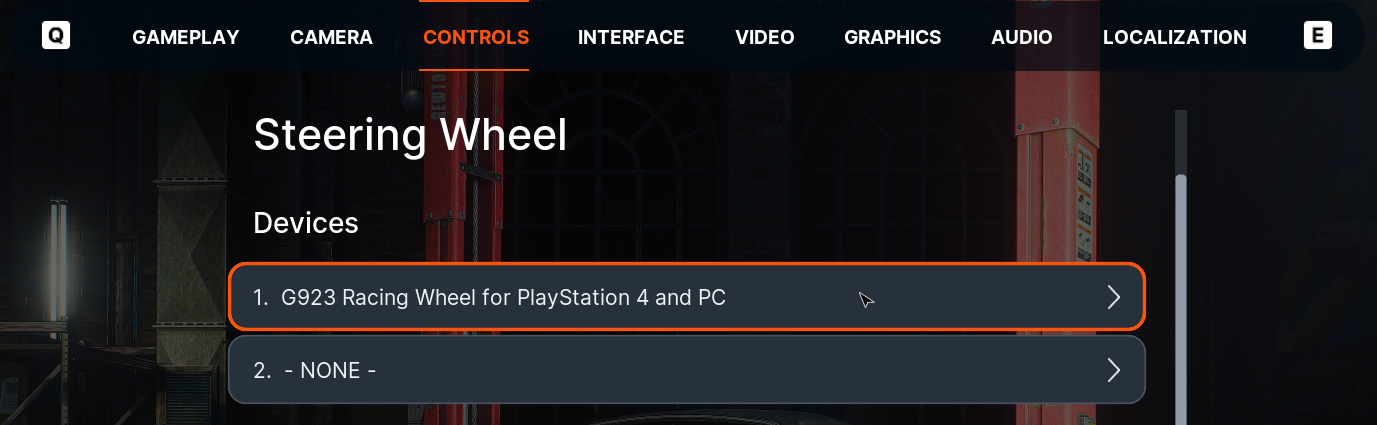
1. Connect and Select Your Wheel
Connect your wheel to your PC. Make sure your PC detects it and that you’ve installed the required drivers and software.
Launch the game and go to Settings → Controls → Steering Wheel.
In the Devices section, select your wheel if it isn’t selected already.
If you use extra devices, such as separate pedals, a shifter, or a handbrake, select them in the additional slots in the Devices section.
The game automatically detects supported wheels and loads the matching built-in preset and settings. If there’s no preset for your wheel, it falls back to USER PRESET so you can set everything up yourself.
2. Choose a Preset
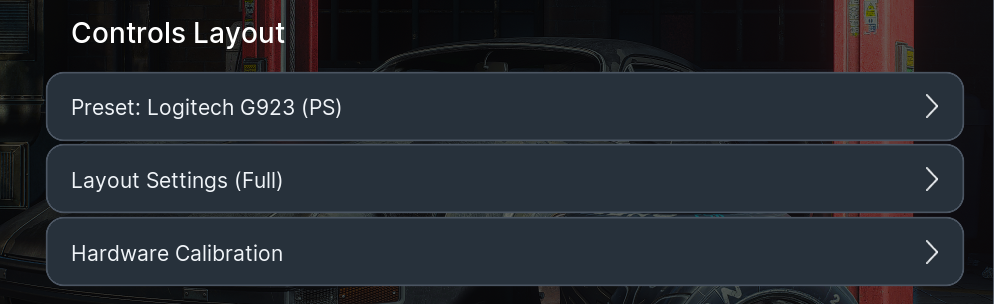
Select Preset under Controls Layout and pick a built-in preset or USER PRESET.
Built-in preset: comes with bindings and button icons already set up. If you change any binding, the preset name gets a [CUSTOM] tag.
USER PRESET: lets you set up every binding from scratch, even if your wheel has a built-in preset.
If your wheel is supported, we recommend starting with its built-in preset.
3. Set Up Your Controls
There are two ways to set up your controls.
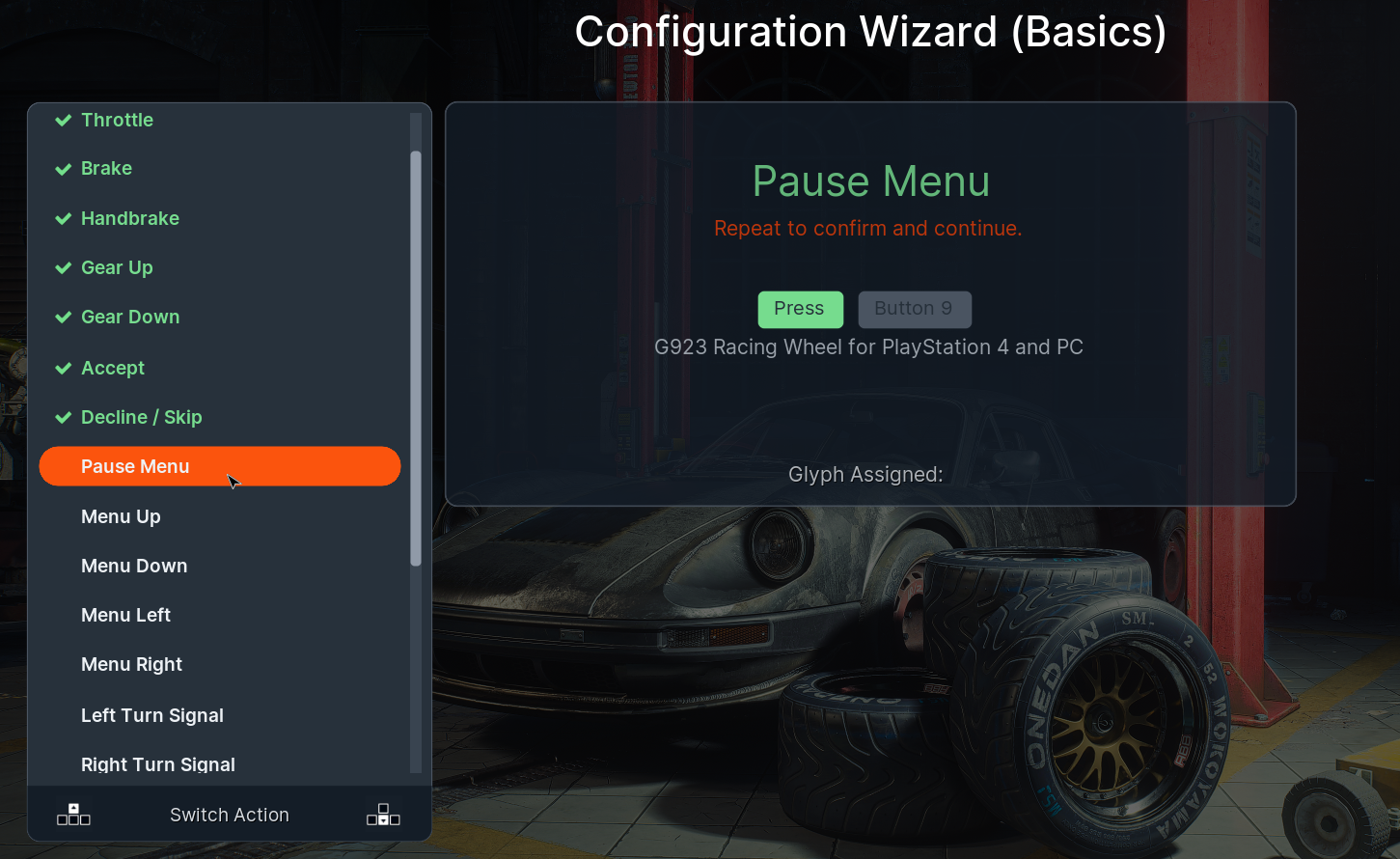
Quick Setup: Configuration Wizard (Basics)
The wizard walks you through binding the basic actions one by one: steering, throttle, brake, gear shifting, and menu navigation.
Note: The Configuration Wizard is only available when USER PRESET is selected. Running it clears all existing bindings in that preset, but the game will ask you to confirm first.
Under Controls Layout, select Configuration Wizard (Basics).
Pick an action from the list on the left.
Follow the on-screen prompt to turn the wheel, press a pedal, or hit a button.
If the game asks, repeat the input to confirm the binding.
Once you’re done, you can add or change any binding in Layout Settings (Full).
Manual Setup: Layout Settings (Full)
Here you’ll find the full list of actions, including extra vehicle functions like turn signals, plus menu controls.
Open Layout Settings (Full).
Select an action.
Press the button or pedal you want to bind, or turn the wheel.
If prompted, repeat the input to confirm.
If that button or axis is already bound to another action, you’ll see a warning. You can either cancel or confirm the new binding. Confirming removes the conflicting one.
To remove a binding, use Delete This Binding.
Button Icons (Set Glyph)
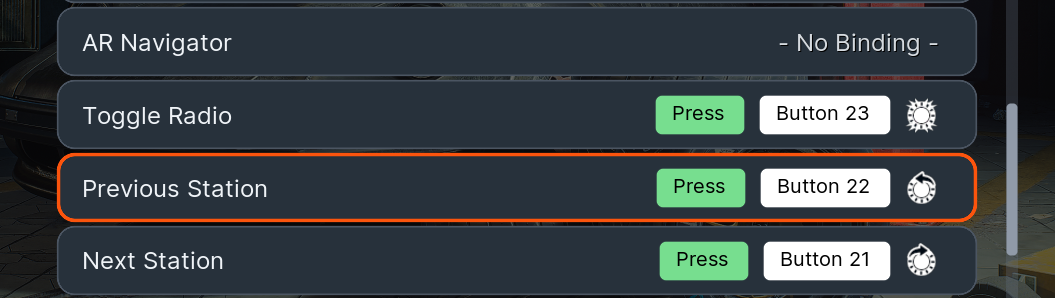
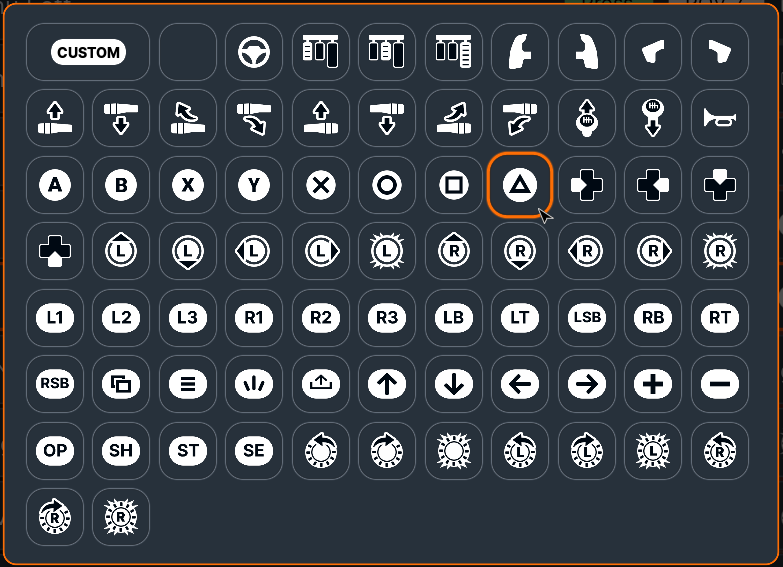
When you set up controls manually, we recommend using Set Glyph to assign icons (glyphs) to your buttons and axes. These icons show up in on-screen control prompts.
If a binding has no glyph, prompts just won’t show an icon for it. The controls themselves will work fine.
Layout Preview (View as Picture)
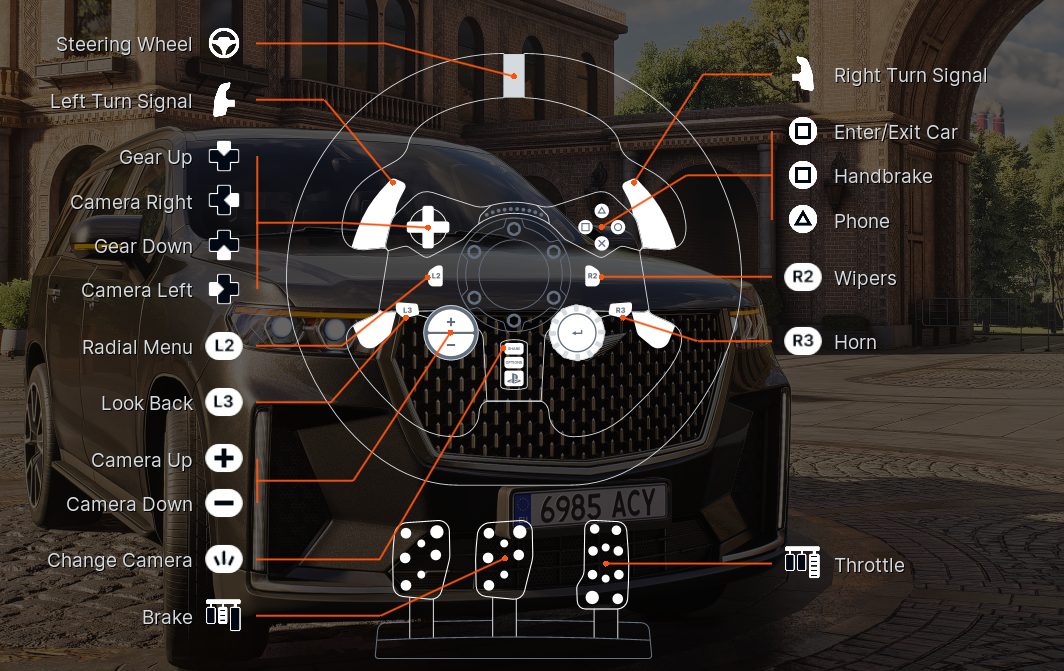
For built-in presets, View as Picture shows your bindings on a diagram of your wheel.
4. Calibrate Your Wheel and Pedals
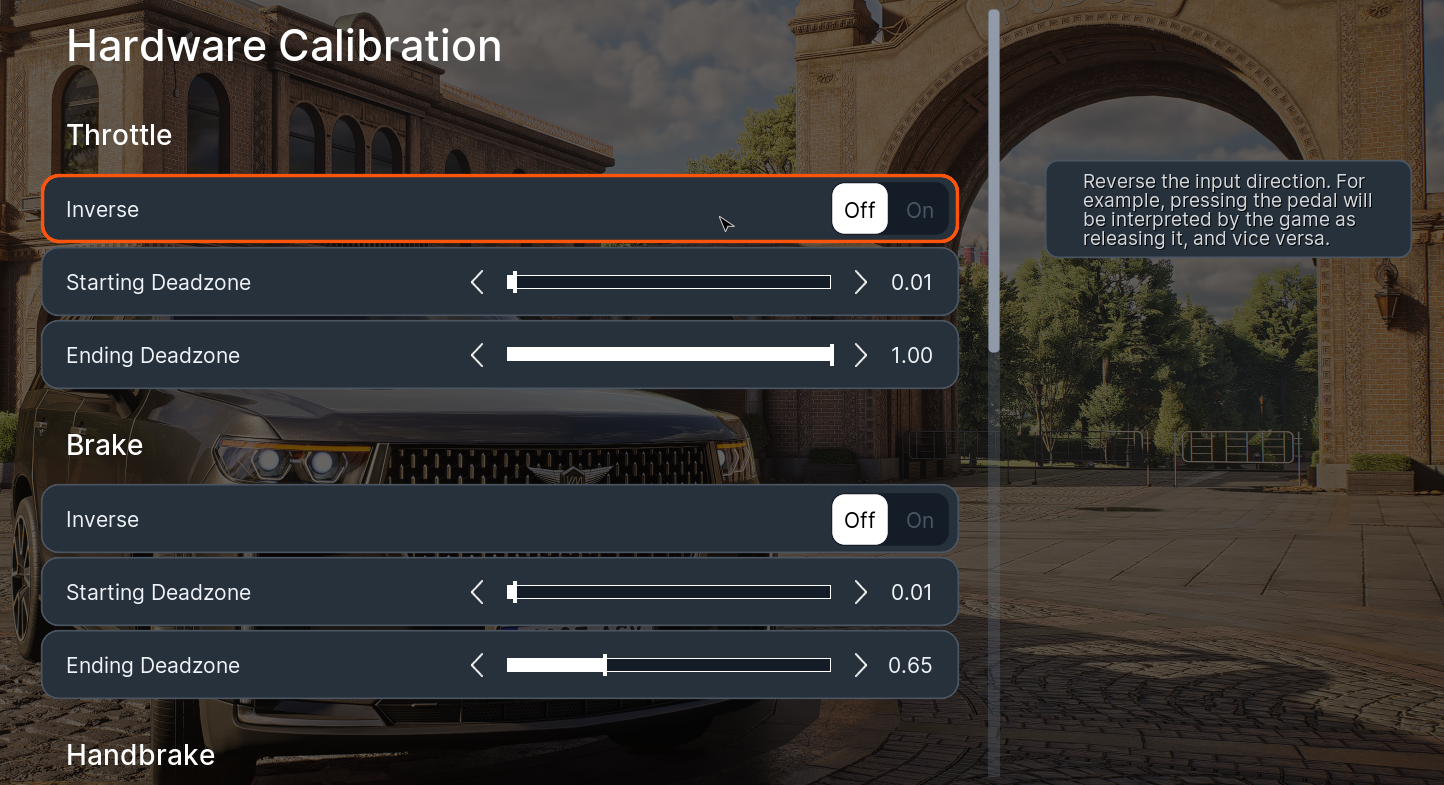
Under Controls Layout, open Hardware Calibration. This is where you can fine-tune your steering axis, pedals, and other analog inputs.
Key settings:
Inverse: flips the axis direction. Use it if your wheel or a pedal works backwards.
Starting Deadzone: ignores the very start of the axis travel, so small accidental movements don’t register.
Ending Deadzone: trims the end of the axis travel, so you hit full input before the wheel or pedal reaches its physical limit.
Steering Angle Range: how far the in-game steering wheel turns, in degrees.
We recommend setting Steering Angle Range to match the rotation range in your wheel’s software, for example 900°.
If something feels off, adjust the deadzones or axis inversion until everything responds correctly.
5. Set Up Force Feedback
Force Feedback (FFB) lets you feel steering resistance, bumps in the road, suspension movement, and collisions.
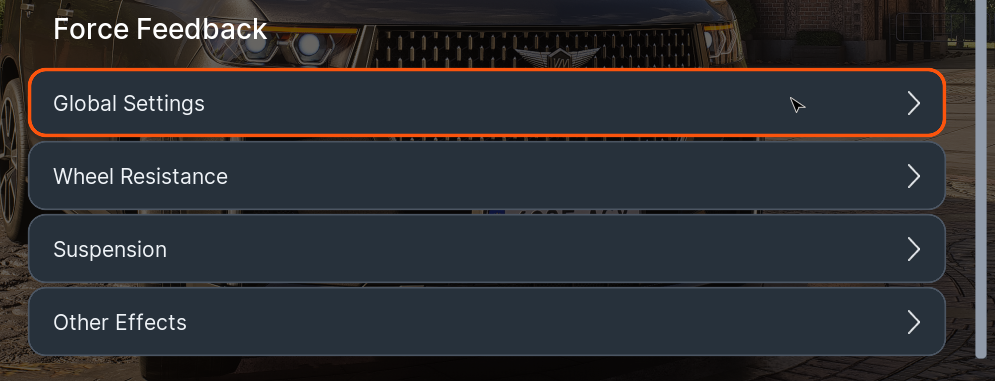
You’ll find these settings in the Force Feedback section, split into four categories:
Supported wheels may get suitable FFB settings automatically when detected. For most wheels, a good starting point is Force Feedback Mode: Advanced with Resistance Source: None. From there, adjust the effect strength to taste.
The FFB sections also have Preview options, so you can try out effects without starting a ride.
6. Test and Save Your Settings
When you’re done, take a quick drive and check that:
The wheel steers the car in the right direction.
The throttle and brake respond correctly.
Gear shifting and your button bindings work.
Force feedback doesn’t feel too heavy or cause unwanted vibration.
All changes are saved automatically, so you don’t need to confirm anything. That’s it! Your wheel is ready to go.
Want to start over? Use Reset Layout in Layout Settings (Full). On a built-in preset, this restores the default bindings. On USER PRESET, it clears all bindings.