How to Add Your Own Online Radio Stations (PC Only)
Rideshare “Stimulator” lets you add your own online radio stations to the game.
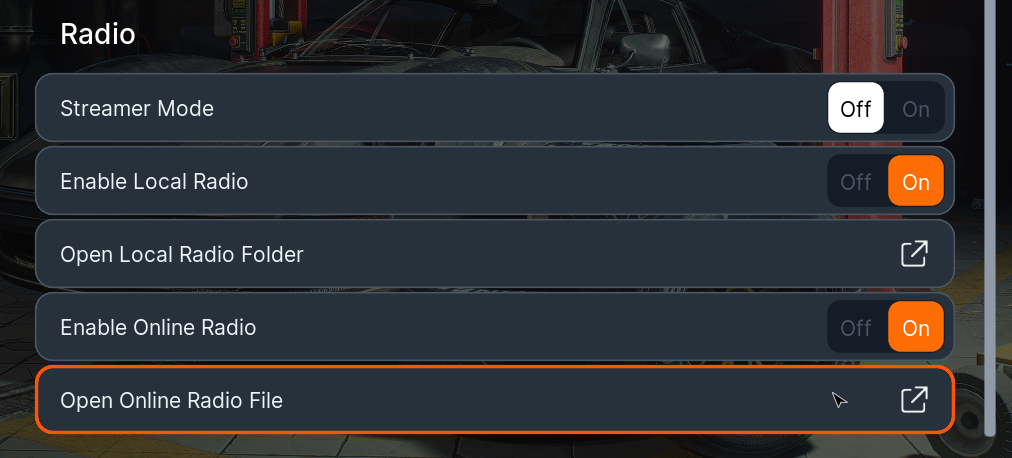
From the main menu, go to Settings → Audio.
Select Open Online Radio File.
This opens the data\ folder inside the game’s install directory.
Open file radio_stations.cvs
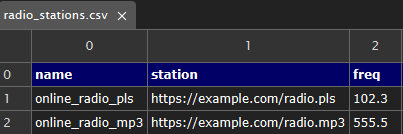
Add a row for each station and fill in the columns:
name: any name you like. This is what you’ll see in the game
station: the direct stream link (PLS, MP3)
freq: any frequency you’d like to display
Save the file.
Switch back to the game.
Note: If you add tracks during gameplay, you’ll need to reload your save before they show up.
That’s it! Your online radio stations will now appear in the game with the names and frequencies you set, playing music from the links you added.
Was this helpful?