Settings Description
The game has presets for the following models:
Steering Wheels:
Logitech G29
Logitech G920
Logitech G923 PS
Logitech G923 XBOX
Logitech G25 Racing Wheel
Thrustmaster Ferrari 458 Spider
Thrustmaster T150
Thrustmaster T300RS
Thrustmaster T-GT
Thrustmaster TMX
Thrustmaster T500RS Racing Wheel
Thrustmaster TX Racing Wheel Ferrari 458 Italia Edition
Thrustmaster T248
Thrustmaster T80 Ferrari 488
Hori Force Feedback Racing Wheel DLX
Joysticks:
Logitech Extreme 3D Pro
Thrustmaster SimTask FarmStick
Thrustmaster T16000 M
Thrustmaster SOL-R 1 Flightstick
Virpil VPC CDT-Aeromax R Flightstick
Logitech X52 Professional
Logitech X56
Thrustmaster Warthog
Moza MH16 AS002
Basic Configuration
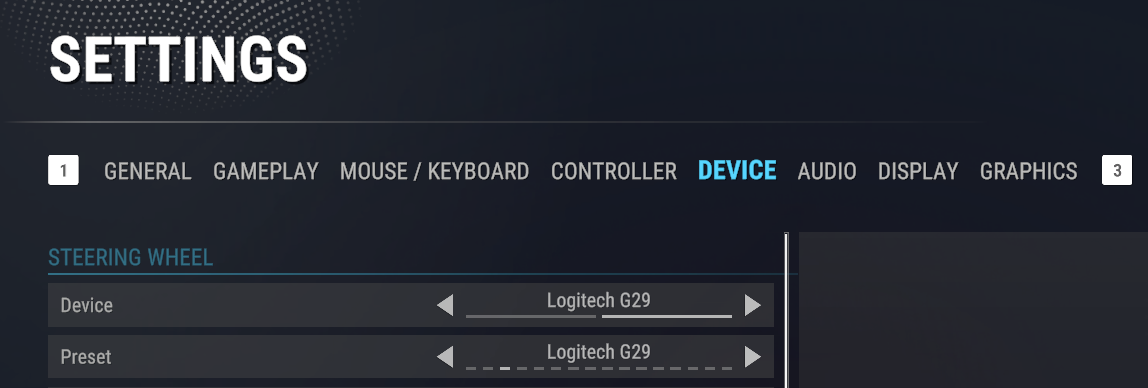
To start the Joystick or Steering Wheel setup, open Settings -> Device

There are three subsections available: Steering Wheel, Right Stick, and Left Stick. Choose one and proceed.
Steering Wheel
a. Choose your connected device in the Device section
b. Then choose a preset whose name matches your device. It associates buttons with hint icons and applies them to control settings according to the wheel model
Left and Right Stick
a. Сhoose which stick of your Joystick you plan to set up
b. Choose your connected device in the Device section
c. Choose a preset whose name matches your device. It associates buttons with hint icons and applies them to control settings according to the joystick model. Known issue: do not choose “default” preset. Right now, the “default” preset might not work as expected.
d. Choose an expected behavior for the stick in the Behavior Preset section. There are several universal behavior presets:
Device Control (1xStick) - grip has 1 stick on top of it
Device Control (2xStick) - grip has 2 sticks on top of it
Device Control (NoTwist | 3xStick) - grip has no twist, and has 3 sticks on it
Movement - the joystick will be used to control the character and machinery movement
These presets configure the basic behavior related to the joystick and the expected number of sticks on top of it.
If your device has additional buttons, you can map them to different actions in the Key Binding settings.
These steps should be enough to configure supported devices. If you wish to customize some settings, proceed to the Axis Settings and Device Calibration sections. With these settings, you can try to manually configure your device.
For the quick setup of your joystick, we recommend doing it in this order:
a. Select your Device in settings
b. Select a Behavior Preset in settings
c. Setup the axis of your device in Axis settings (optionally)
d. Setup your device behavior via the Device Calibration settings (optionally)
Axis Settings
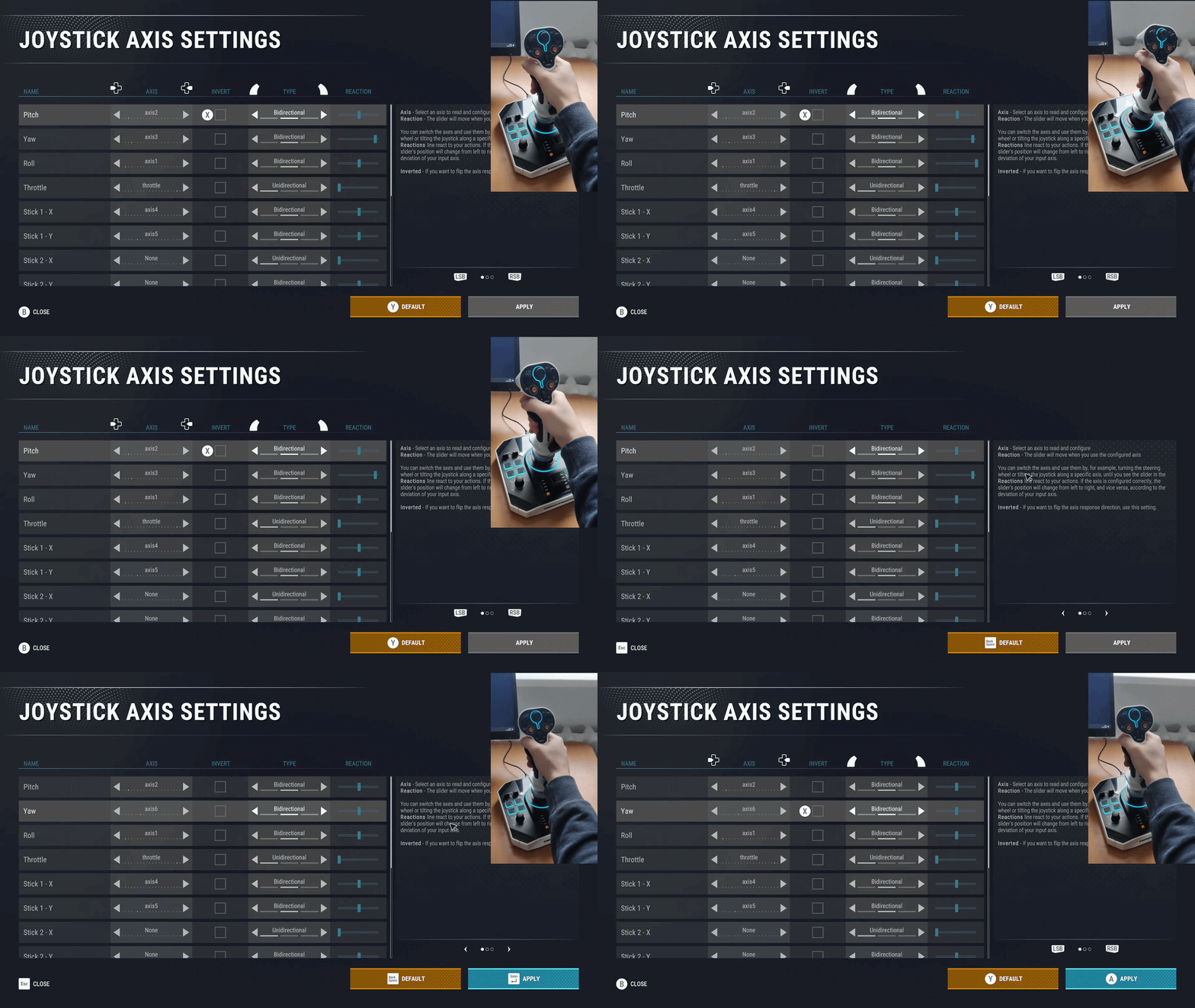
At this screen, you can set up Axes and change their behavior. It shows the values being read from your device and lets you check whether all axes are being read. If something isn't right, adjust the axis reading for your specific device.
At this stage, you need to "find" exactly which analog axes the device responds to. This is done by going through them one by one. Not all sticks on the grip are analog. If it clicks when moved, it means it is not analog, you do not need to configure it here, and it should be configured on the Device Calibration screen.
Move and rotate your device to see how the sliders respond; some settings might already be correct by default, and you need to identify which ones need to be changed.
Possible issues and solutions:
No response - you need to change the axis for this field until it responds to the movement.
Unexpected response - you need to change the axis type.
Most common settings for steering wheels:
Steering wheel Right/Left
or wheel (type - centered)
or axis1 (type - bidirectional)
Throttle - throttle / axis2 (type - undirectional)
Brake - brake / axis3 (type - undirectional)
Clutch - clutch / axis4 (type - undirectional)
Most common settings for joysticks:
Pitch - axis2 (type - bidirectional)
Yaw - axis3 (type - bidirectional)
Roll - axis1 (type - bidirectional)
Stick 1 X (Left/Right) - axis4 (type - bidirectional)
Stick 1 Y (Up/Down) - axis5 (type - bidirectional)
Axis Types:
Bidirectional (common for sticks): the default position is centered and can be moved forward/backward or left/right. Hardware input ranges from 0 to 1, with a default position of 0.5.
Centered (common for steering wheels): if, when set to Bidirectional, the input maxes out before you reach your control device's limit, try selecting this behavior. Hardware input ranges from -1 to 1, with a default position of 0.
Unidirectional (pedals): the default position is at one end (value 0), while the input increases until it reaches the other end of the scale (value 1). Hardware input ranges from 0 to 1, with the default position at 0.
Common cases:
Pedals
- You accelerate without pressing the gas pedal: The gas pedal may be inverted. Change the inversion value.
- If you press the gas pedal and the response value changes from the middle to the right edge, and when you press the brake pedal, it changes from the middle to the left edge (or vice versa), your gas and brake pedals are using the same axis. Set this axis type to Bidirectional, then use the calibration screen to update the pedal calibration.
Joystick
- When using the throttle axis as throttle/reverse, set this axis behavior to Bidirectional. This way, you can use the forward/backward offset from the center to adjust the throttle and reverse inputs.
Device Calibration
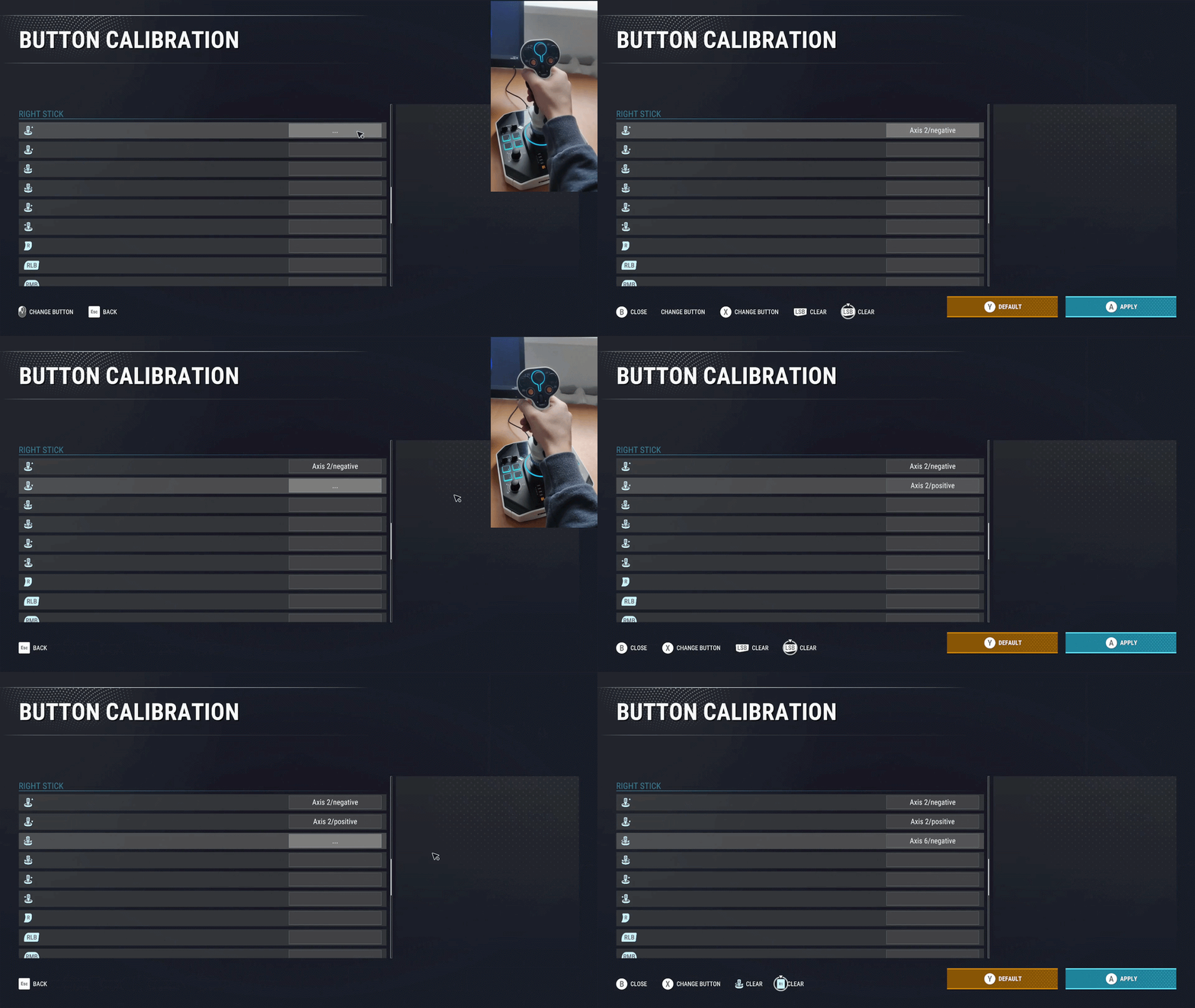
It is a mandatory screen during the custom setup of your device because the configured axes must be applied to the overall behavior.
This screen does two things:
It binds buttons/inputs to icons to display on-screen prompts.
It updates the button settings associated with the selected behavior. This way, you update the button settings here, and the rest of the settings are automatically adjusted to your specific device.
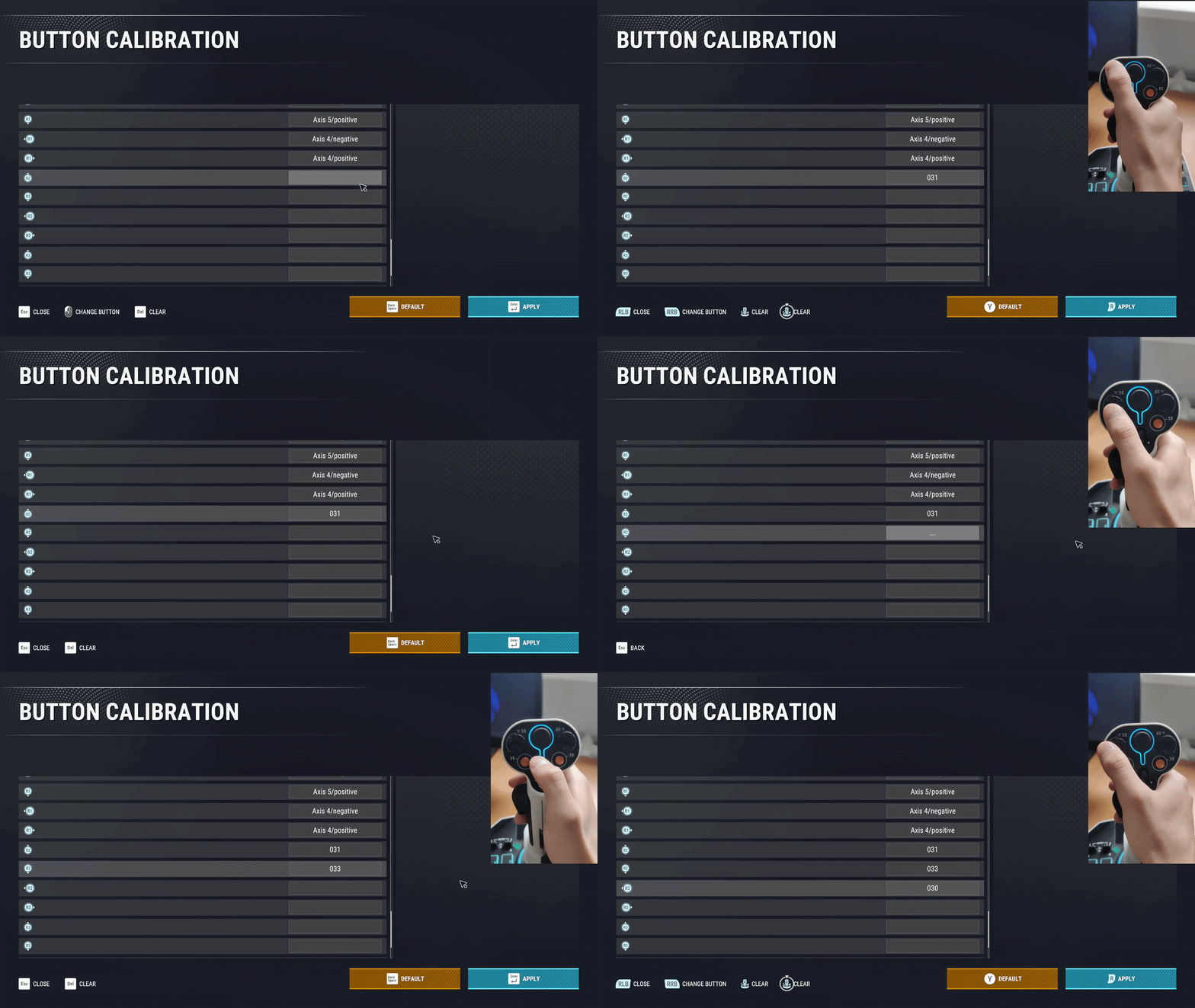
At this screen, you need to bind the buttons and axis movements to their corresponding icons. After assigning and applying these bindings, your device should be ready to use.
Some descriptions of common joystick buttons:
RLB / LLB - Left button on top of the Right/Left joystick grip
RRB / LRB - Right button on top of the Right/Left joystick grip
RMB / LMB - Middle button on top of the Right/Left joystick grip
Key Binding
This screen is for the custom setup of your device and its behavior for advanced users. Usually, you do not need to setup anything here, and your joystick should work at this point.
If needed, you can configure additional buttons on this screen. Here are the ones we recommend paying attention to:
Character/Interact
Character/Open/Close the tablet (for free mode)
Vehicle/Engine Start/Stop
Vehicle/Spreader Size
Vehicle/Cable mode
Vehicle/Switch to Supports / Drive mode
Vehicle/Center Spreader
Vehicle/Change view
Vehicle/Horn
Vehicle/Rotate Seat
Also, before configuring the device, please pay attention to how modifiers work:
Modifier: must be held for its associated Action buttons to work. If two modifiers are listed (1, 2), both must be held at the same time
Modifier OR: One of the modifiers must be held for its associated Action buttons to work.
Block: while held, its associated Action buttons will NOT work.
If a Modifier is unassigned (cleared), it is considered held (the condition is considered met).
Also, there are some sample button settings and their effects:
"Device Rotation" group (Away/Toward):
- Modifier: B5 (Button 005)
- Block: B4 (Button 004)
- Away: Dpad Up
- Toward: Dpad Down
This can be shortened to:
B5 + Dpad Up/Down (-B4)
"Device Lift" group settings (Up/Down):
- Block 1: B5 (Button 005)
- Block 2: B4 (Button 004)
- Up: Dpad Up
- Down: Dpad Down
This can be shortened to:
Dpad Up/Down (-B5, -B4)

Both groups use Dpad Up, but with different additional conditions:
Lift group: Dpad Up/Down (-B5, -B4)
Rotation group: B5 + Dpad Up/Down (-B4)
When Dpad Up is pressed, the following may happen:
If you don't hold B5, the device moves up (block is not held for lifting, modifier is not pressed for rotation)
If you hold B5, the device rotates (block is held for lifting, modifier is held for rotation)
If you hold B4, the device will not move or rotate (block is held for both lifting and rotation)
The "Device Centering" group:
Modifier 1 OR: B5
Modifier 2 OR: B4
Action: B9
This can be shortened to:
B5/B4 + B9

To center the device by pressing B9, you must also hold down B5, or B4, or both buttons simultaneously.
Troubleshooting
If your devices are not being detected, try verifying the game files' integrity.
If you are using a USB hub and your device is not working, try connecting the device directly to your PC without the USB hub
Known issue: do not choose “default” preset. Right now, the “default” preset might not work as expected.
Please ensure you are using the latest drivers for your device. If any special software exists for your device, such as Moza Pit House or Logitech G HUB, make sure it is installed and running.