How to manually set up your steering wheel
This guide walks you through manually setting up any steering wheel in Bus Bound.
1. Connect your steering wheel before launching the game.
Before launching the game, make sure your steering wheel is already set up, plugged in, and powered on.
If you are on PC, make sure that your drivers are up to date.
Then, launch Bus Bound.
2. Enter ‘Settings’.
From the main menu:
Go to “Settings”
Go to “Steering wheel settings”
During gameplay:
Enter the pause menu
Go to “Settings”
Go to the “Steering wheel settings” tab at the far right of the settings tabs
Enter ‘Steering wheel settings' in the main menu (or while playing, at any point by pausing or going through the office menu), select ‘Settings’, then go to the Steering Wheel tab at the very right in the settings.
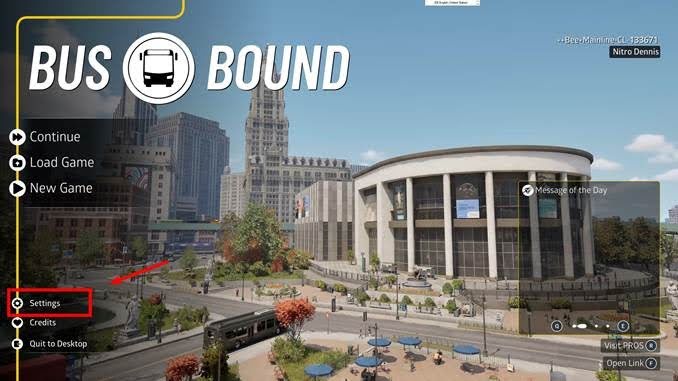
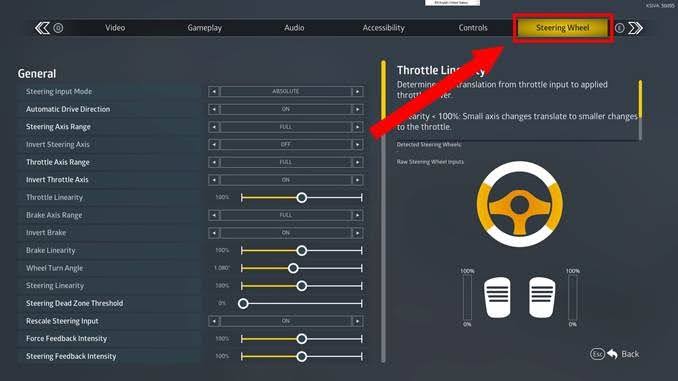
3. Set up ‘Driving Axes’ (wheel and pedals).
Before tuning, we first need to make sure our wheel and pedals are detected correctly. For this, scroll down to the Driving section, and select the option to bind the Forward, Brake, and Steering inputs.
Select ‘Forward’, then press your throttle pedal to assign the throttle axis.
Select ‘Brake’, then press your brake pedal to assign the brake axis.
Select ‘Steering’, then rotate your wheel to assign steering. You might have to rotate 180 degrees or more for this to register.
To answer this question now: buses generally don't have manual transmissions, so there is no clutch binding. You can, however, set your DNR gears if you wish.
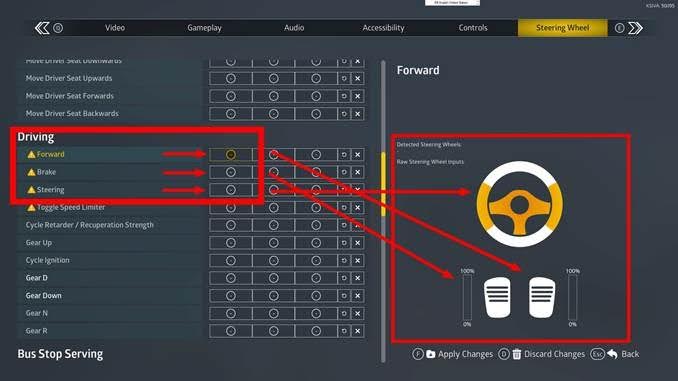
4. Tweaking pedals and steering.
Scroll back up into the General section. Here, we have to set our axes so the game maps their ranges properly. The most important settings are:
Press your throttle pedal and check the preview on the right. If the bar fills from 0% to 100% as you press down the pedal, you have the correct setting. Otherwise, change the settings for Throttle Axis Range and Invert Throttle until it matches.
Do the same for the Brake Axis Range and the Invert Brake settings until the brake pedal is at 0% when not pressed and 100% when fully pressed down.
Finally, set your wheel turn Angle to your preferred amount of rotations - buses have a much larger range than race car setups, though most steering wheels support a maximum range of 900 degrees up to 1,800 degrees, and many wheels support a maximum range of 1,080 degrees. The best setting depends on your hardware.
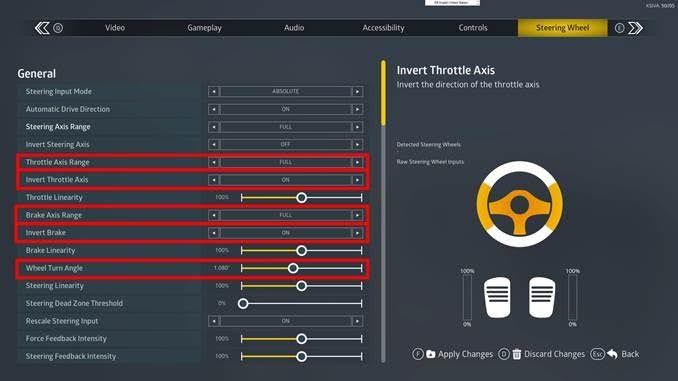
5. Tweaking Force Feedback.
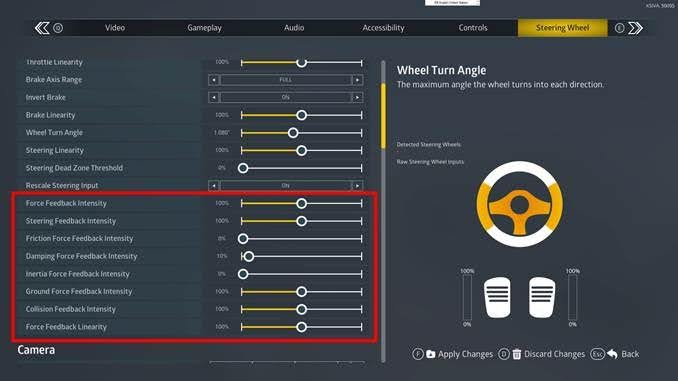
Further down, in the same section, you can tweak your force feedback settings. Be careful and take it one step at a time.
Caution: Many wheels do not support Friction, Damping, Inertia, Ground Force, or Steering Feedback. If your steering wheel starts to wiggle uncontrollably or never rests in the neutral / 0 degrees position, it usually means that you need to set one or more of these sliders to 0.
In this example, the Thrustmaster T150 does not support Friction and Inertia, so these sliders are at 0. Additionally, the T150 operates on an unconventional damping value range, so we set it to a maximum of 10%. This appears to be the highest value that it plays nice with. Please experiment with this while you drive.
If you experience any issues, reach out to the support team here.
6. Set your preferred shifting method.
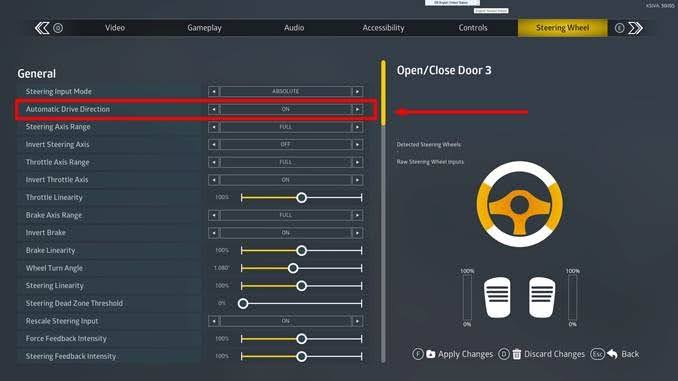
The "Automatic Drive Direction" setting lets you choose whether to shift between Drive and Reverse manually or have it shift automatically.
Caution: If you choose to disable automatic drive direction, you HAVE to change gears yourself. You WILL start every drive in Neutral gear, so if you cannot accelerate, that is the reason why. In this case, do make sure to bind your shifting controls in the final step.
7. Bind your other buttons.
Now that steering works, it's time to bind all other functions.
Essential bindings
Generally, we recommend binding the following functions to have access to all features:
- Toggle Stop Brake
- Open / Close Doors
- Left Indicator
- Right Indicator
- Toggle Wipers
- Horn
- Toggle Speed Limiter
- Cycle Retarder
- Look left
- Look right
Advanced bindings
Some other functions you might be looking for:
If you choose to disable Automatic Drive Direction, make sure to bind your shifting controls.
- Doors can be opened individually
- Radio on / off
- Toggle High Beam (and other lights) in the Lights section
- Kneeling
- Cycle Ignition
- Move Driver Seat (in Camera section)
UI bindings
If you want to control your menus and access pausing and the map while driving, head to the UI section to bind your buttons there.
Caution: Menu/Select or Options/Share pause the game by entering the pause menu or opening the map, respectively. Make sure these buttons are not bound to any other bus operation or driving functions. Otherwise, all remaining buttons have no effect while driving with a steering wheel.